Appearance: pictures, themes and front screens
The help for this page of the Version 2 transmitter, in its newest words. A transmitter on V2 B92 or older shows older words.
On the transmitter: Transmitter setupAppearance
How the screens look: the background picture, the colours (themes) and your own front screens.
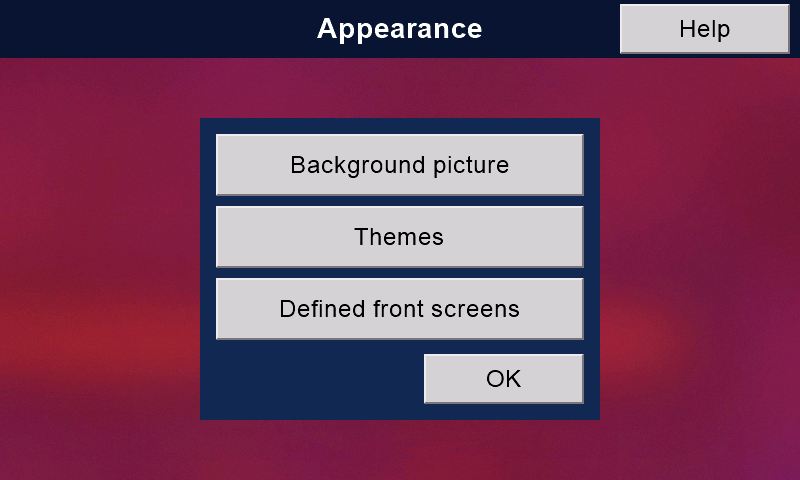
Background picture
The picture behind the pages. '-' and '+' step through the 43 pictures; 'OK' keeps the one showing.
Themes
Twelve themes, each a panel colour with its own text colour.
Touch one: the page shows it at once, framed in yellow.
'OK' makes it the screens' theme.
'Cancel' leaves things as they were.
Some things keep their own colours: buttons, the white boxes you type into, and red and green words.
Edit themes
'Edit themes' changes either colour of any theme to any colour:
- Touch a theme.
- Press 'Panel colour' or 'Text colour'.
- Slide the three bars: Colour, Strength (grey to vivid) and Light (black to bright).
The sample shows the theme as it will look.
'Defaults' puts all twelve back as they came.
'OK' takes you back to Themes. Press 'OK' there as well, to keep the new colours. 'Cancel', on either page, forgets them.
The themes go by number, 1 to 12, not by name: a name might not match a colour you made.
Defined front screens
Your own front screen: big, clear numbers while you fly.
'Defined front screens' opens the design page: it shows the screen in use, live.
You can design six: one for the simulator, one for a helicopter, one for a glider, all ready at a touch.
Each keeps its own boxes, box sizes, box themes and 'Stays lit'.
The six are kept through updates and switching off.
The tabs 1 to 6 at the top right choose the screen. The yellow tab is the one in use: touch another and it is in use at once, and the page shows its design.
The same tabs are on the defined front screen itself, so switching while you fly is one touch. There, on the ground, hold a box for two seconds to open its chooser there and then.
Boxes
Touch a box to choose what it shows: Timer, Flight battery, TX battery, Link, Frame rate, Head speed, ESC temperature, Current, Capacity used, Bank, Rate, Motor, Clock, Model name, Model image, Channels 1-8, Channels 1-16 or Nothing.
Touch a choice and it is made at once.
'OK' goes back with no change.
A choice another box already shows is darker and carries that box's number, so nothing is chosen twice by mistake.
Box themes
In a box's chooser, press 'Theme'. A box takes any of the twelve themes; a theme other boxes already wear carries their numbers.
'Same as screens' gives it the screens' theme again.
A Motor box takes the safety's colours, as the original front screen's Motor box does, whatever its theme.
Box sizes
'Box sizes' offers twelve layouts, from one big box to nine small ones. The numbers grow with their boxes.
Box 1 is at the top left, and is always one of the biggest:
put what matters most there.
'Stays lit: yes' stops the screen going dark while your front screen shows and a model is connected (or you are flying).
Changes are kept as you make them. 'OK' closes the design page.
Which front screen shows
You choose on the front screens themselves:
'Defined screens' on the original brings yours;
'Original screen' on yours brings the original back.
The choice stays through take-offs, landings and switching off, until you press the other button.
Your screen's other buttons: 'Transmitter', 'Model', 'Help' and the tabs 1 to 6. A tap anywhere else does nothing.
A warning (BATTERY LOW, NO LINK) turns its top line red.
The switch-off countdown always shows on the original screen.
While the safety is off, the 'Appearance', 'Themes' and design pages close, and will not open.
(With no safety switch: while the motor is on.)
Still stuck?
See common questions, or write to mmessiter@gmail.com. Say which page, and what the screen showed.